2 Color Poster Project
~ 2 COLOR POSTER PROJECT ~
Project Sheet PDF
Competency:
#503 Demonstrate basic use of page layout software - InDesign
Project:
Utilizing Cornell Notes with class lecture & demonstration of Adobe InDesign, the student will first create 2 abstract designs showing their use of each tool reviewed. Next the student will reproduce the fundraiser poster provided to them with concern for accuracy in both typography & measurement. Lastly the student will creatively design their own SkillsUSA poster as a Live Job to include all of the content provided, all to the criteria detailed in the PDF.
Key Points & MAX Strategy:
Utilizing "Cornell Notes" as a comprehension strategy, we will use Class Lecture, demo, & hands on activities for SkillsUSA poster as a Live Job
-
Selection Tool
-
Direct Select Tool
-
Type Tool & Text on a Path
-
Line Tool
-
Pencil Tool
-
Pen Tool
-
Rectangle, Elipse Frame & Polygon Frame Tool
-
Rectangle, Elipse & Polygon Shape Tool
-
Color Palette
-
Character Palette
-
Stroke Palette

Histograms
The histogram is a tool that your camera provides for you to be able to get the correct exposure on your images. Getting the best exposure in camera should be your goal every time you are in studio. The LCD screen on the camera cannot and should not be used to achieve good exposure.
What is a histogram?
Dictionary definition: A bar graph of a frequency distribution in which the widths of the bars are proportional to the classes into which the variable has been divided and the heights of the bars are proportional to the class frequencies.
Anyone else confused? But what does it do? How do you read it?
How to read the Histogram
A histogram is a graphical representation of the pixels exposed in your image. The left side of the graph represents the blacks or shadows, the right side represents the highlights or bright areas and the middle section is mid-tones (middle or 18% grey). How high the peaks reach represent the number of pixels in that particular tone.


What can we learn from the histogram?
There are many things we can learn about an image just by looking at the histogram.
We can tell an image is well exposed if it reaches fully from edge to edge without a space on one side of the graph, and isn’t heavily going up one side or the other. In an ideal world, it should just touch the left and right edges, and not spill up the sides, with a nice arch up in the center. However that doesn’t always apply in every situation, for every scene. Here are a few examples:

Low Key
This histogram represents a low-key photograph; a photo with predominantly black or darker tones. This histogram is still properly exposed for the shadows.

Ideal Histogram
This is how an ideal histogram might look, evenly distributed, edge to edge, not up the sides.

High Key
This histogram represents a high-key photograph; a photo with predominantly white or lighter tones. This histogram is still properly exposed for the highlights.
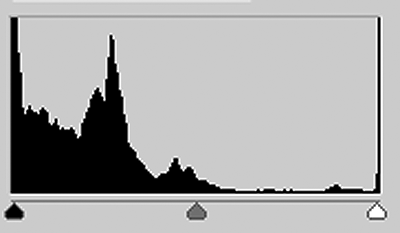
UNDERexposed Histogram
This graph shows an underexposed image, notice the gap on the right side of the graph indicating there are no whites represented so the image will be too dark.

High-Contrast Histogram
This is what a histogram would look like with high contrast, lots of shadows and highlight, but not a lot of mid-tone grays.
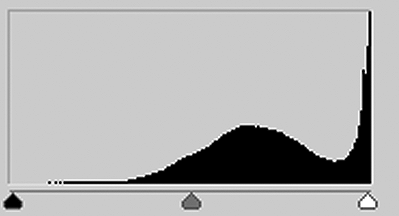
OVERexposed Histogram
This graph shows an overexposed image, notice the gap on the left side indicating a lack of any blacks represented. It also means you will lose lots of detail in the white areas that may not be recoverable.
Checking the histogram on your camera in studio
Depending on which camera type you are using, you will need to to push a different button to cycle thru the menu options to check your histogram during studio time. You need to check the histogram throughout your photo shoots to achieve good exposure and get a better grade!

Canon Cameras
Push the 'INFO' or 'DISP' button to cycle thru to the menu until you see the histogram.
Button will be located on either the top left or on the mid/top right on the back of the camera.

Nikon Cameras
Push the 'UP' or 'DOWN' arrows to cycle thru the menu until you see the histogram.
Arrows are always located on the middle of the right side on the back of the camera.